Remove a background. Reimagine the image.
With PngExport, remove a photo background on the spot in your browser, then apply any solid color, gradient, or pattern. Crop the result to a circle or square and set its export size in the same workflow.

Portrait background edit
Remove · replace · crop
01 · Background remover
Remove the background on the spot, then apply any backdrop
PngExport removes the photo background in your browser and creates a transparent cutout. Right after removal, apply any solid color, gradient, or pattern—no need to download the cutout and open another editor.
- Remove the original backdrop in-browser
- Compare the source with the cutout
- Apply any color, gradient, or pattern
- Use PNG when transparency matters
 BEFORE · ORIGINAL
 AFTER · NEW BACKDROP
Sample source and transparent cutout: Wikimedia Commons.
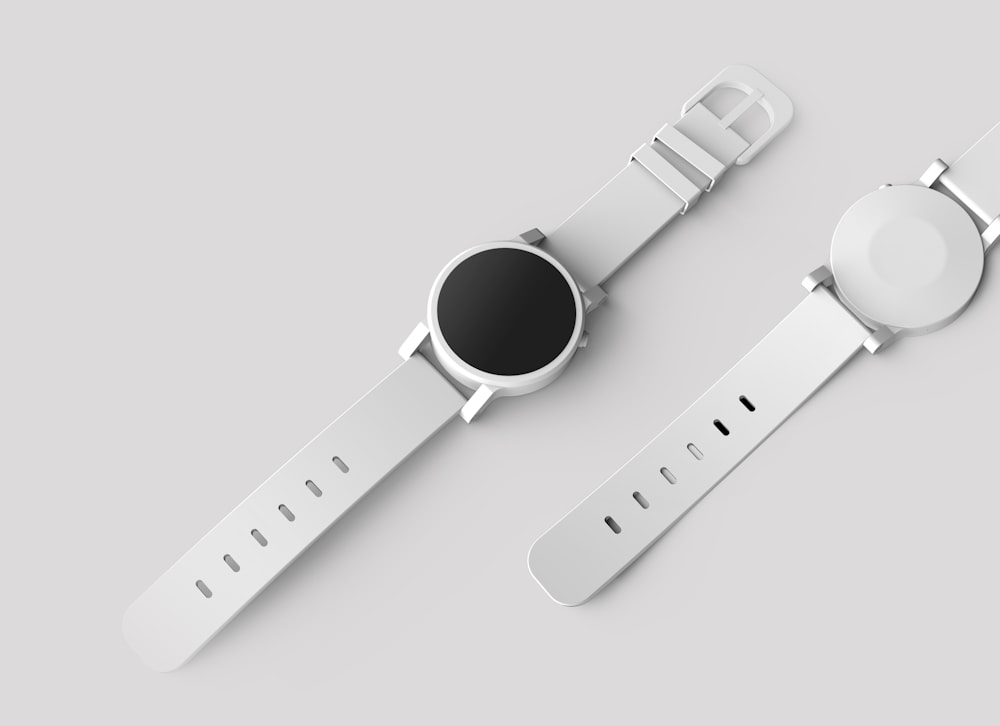 Product photo · color preview
Preview how a real product image feels against a softer palette before applying a background to your cutout.
Background presets
Solid, gradient, and patterned options
Studio white
Clean and neutral
Midnight
Bold contrast
Ocean
Cool and calm
Peach
Warm and soft
Lavender
Creative and light
Paper
Subtle texture
After PngExport removes the original background, choose any preset or set your own colors.
03 · Resize
Set the image dimensions you need
Enter an output width and height in pixels after choosing a crop. Resize a background-edited image for a storefront, profile, content card, or presentation without leaving the PngExport workflow.
Open the dedicated image resizer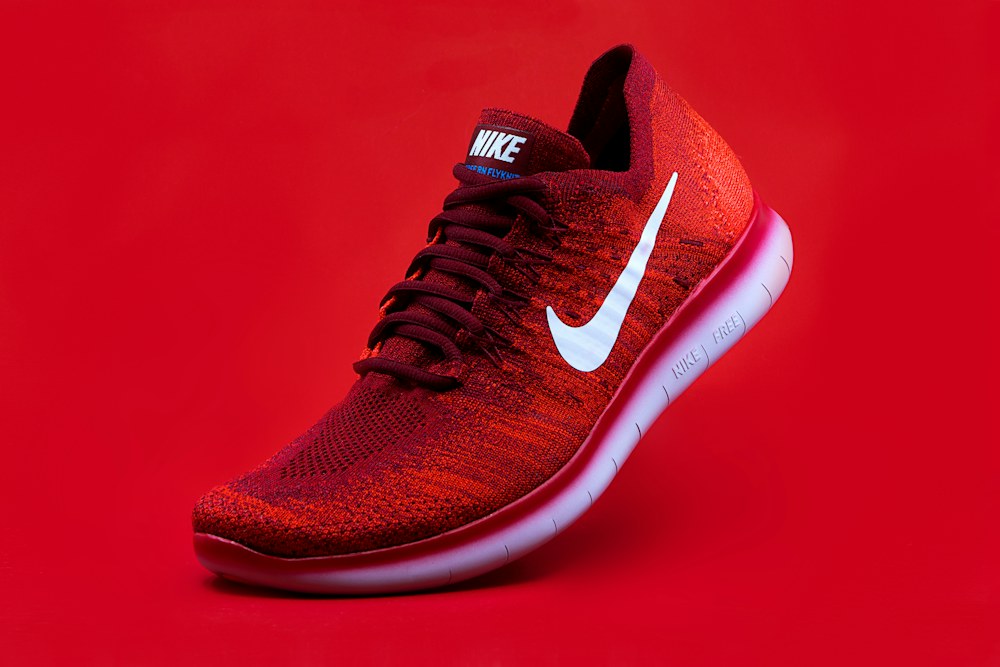 PRODUCT PHOTO · EXAMPLE
1200 px
1200 px
Enter dimensions that match your destination. A crop shape produces a square canvas; confirm the final framing in the preview.

Real portrait · circular crop preview over a transparency grid
04 · Crop
Shape the framing before you export
Select a square or circle crop, zoom into the subject, and drag to reposition the image. A circular PNG preserves transparency outside the circle, making it useful for avatars, badges, and layered designs.
Explore PngExport crop image05 · A simple workflow
From original photo to finished image in four steps
The PngExport background changer keeps the key controls together: prepare the subject, choose the backdrop, set the crop and dimensions, then export.
Upload an image
Choose a photo or a transparent PNG. Your original file stays available while you work.
Remove or replace
Create a cutout when needed, then select a background style or set your own colors.
Set the crop and size
Choose circle or square, reposition the crop, and enter the output dimensions.
Preview and download
Review the composition, select PNG, JPEG, or WebP, and download the finished image.
06 · Made for everyday work
Useful background edits for real projects
A background editor is most useful when it helps an image fit its destination. Use PngExport for practical edits across stores, social content, teams, and documents.
Product listings
Create consistent product photos for online stores, catalogs, and marketplace listings.
Profile portraits
Prepare a portrait for a team page, profile image, presentation, or creator brand.
Social graphics
Place a subject on a campaign color or gradient, then crop to a square or circle.
Presentations
Make a cutout easier to layer into a slide, proposal, or visual report.
07 · Review the result
Check edges, contrast, and crop before saving
A background change can alter how an image feels. Compare the subject against your new backdrop, check fine details around the edges, and make sure the crop leaves enough room for the final placement.
Edges
Hair and outlines
Contrast
Subject visibility
Framing
Room around subject
08 · Background inspiration
Pick a background style with a purpose
Use a clean neutral for catalog consistency, a strong solid for contrast, or a restrained gradient for a more expressive visual. PngExport lets you preview background colors before you commit to an export.
Studio white
Clean and neutral
Midnight
Bold contrast
Ocean
Cool and calm
Peach
Warm and soft
Lavender
Creative and light
Paper
Subtle texture
09 · Build a complete image
Remove, replace, resize, and crop with PngExport
Work in the order that suits your image. Remove a background first when you need a cutout, add the new backdrop, then set the crop and output dimensions. You can also open a dedicated tool for one focused task.
10 · Export formats
Choose the right file type for the background
The format affects transparency and file size. Preview your result, then choose the export that suits where you plan to use the image.
Keep transparency
Choose PNG for a transparent cutout, circle crop, logos, or graphics with crisp edges.
Use a solid canvas
JPEG does not support transparency. Transparent areas are filled white, so choose a visible background when you need a specific color.
Modern web delivery
Use WebP for web-friendly image delivery. Keep in mind that transparent output depends on the source and browser encoding.
11 · Designed for local editing
How PngExport processes your image in the browser
PngExport uses browser image and canvas capabilities for cropping, compositing, previewing, and export. Background removal runs in a web worker using a model that the browser downloads when needed. The image pixels are processed on your device.
Load locally
Select an image from your device.
Edit locally
Preview crop and background changes.
Export locally
Create a file in your browser.
12 · Better results
A few checks before you export
Use these practical checks to make a background-edited image more useful across its intended placements.
13 · PngExport answers
Image background editor FAQs
Straightforward answers about removing backgrounds, adding colors, resizing, cropping, privacy, and image formats in PngExport.
How do I remove and change an image background with PngExport?+
Upload an image to the PngExport background editor, select Remove background, and wait for the browser-based cutout. Choose a solid color, gradient, or pattern, review the preview, then download your image.
Can I add a background without removing one first?+
Yes. If your image already has transparency, upload it and choose a background style. PngExport places the transparent image over your selected color, gradient, or pattern.
Can I use this tool to resize or crop my image?+
Yes. Set a custom output width and height, or select a square or circle crop in the editor. For dedicated workflows, PngExport also offers separate resize-image and crop-image tools.
Which image formats can I download?+
The background editor exports PNG, JPEG, and WebP. PNG supports transparency. JPEG does not, so transparent areas are filled with white. Choose a solid, gradient, or pattern background when you need a specific color behind your subject.
Are my photos uploaded to PngExport?+
The image editing and background-removal steps run in your browser. The background-removal model files are downloaded from Hugging Face when needed and may be cached by your browser; your image pixels are processed locally rather than sent to a PngExport image-processing server.
What makes a good background-removal result?+
A clear subject, reasonable contrast between the subject and background, and a sharp source image generally make edges easier to identify. Fine hair, transparent objects, motion blur, and similar colors can need a closer review after automatic removal.
14 · Create with PngExport
Give your next image a more useful background
Remove, replace, resize, and crop in one browser workflow. Review the live preview and export the format that fits your project.