Combine image files
Turn PNG, JPG, JPEG, WebP, and GIF files into one organized PDF document.
Use PngExport to combine and reorder images into one clean PDF document.
or click to browse from your device. Supports multi-selection of PNG, JPG, WebP, and GIF.
A better way to package images
Combine photos, scans, screenshots, and graphics into one PDF, arrange the page order, choose the layout, and download the result. Use the PngExport image-to-PDF workflow for submissions, printing, sharing, and archiving.
3 selected images

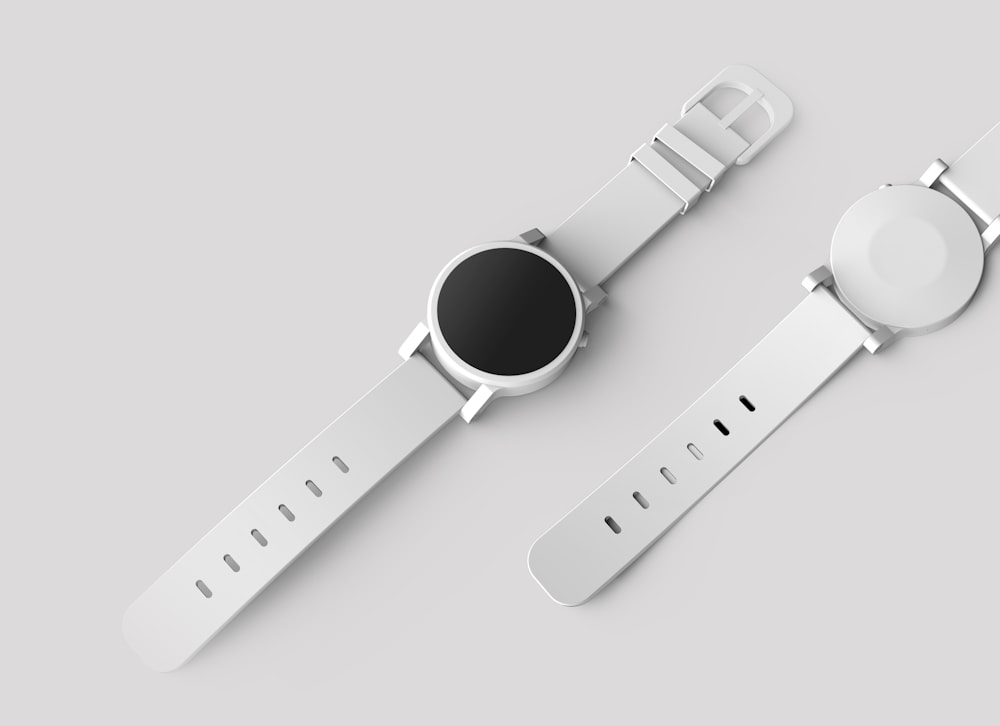
 PAGE 1 OF 3
01 · Multiple image selection
Choose multiple JPG, PNG, JPEG, WebP, or GIF files in one go, or add more images to your selection. PngExport turns each selected image into a page and lets you reorder the pages before creating the document.
1portrait.jpg
2product.jpg
3landscape.jpg
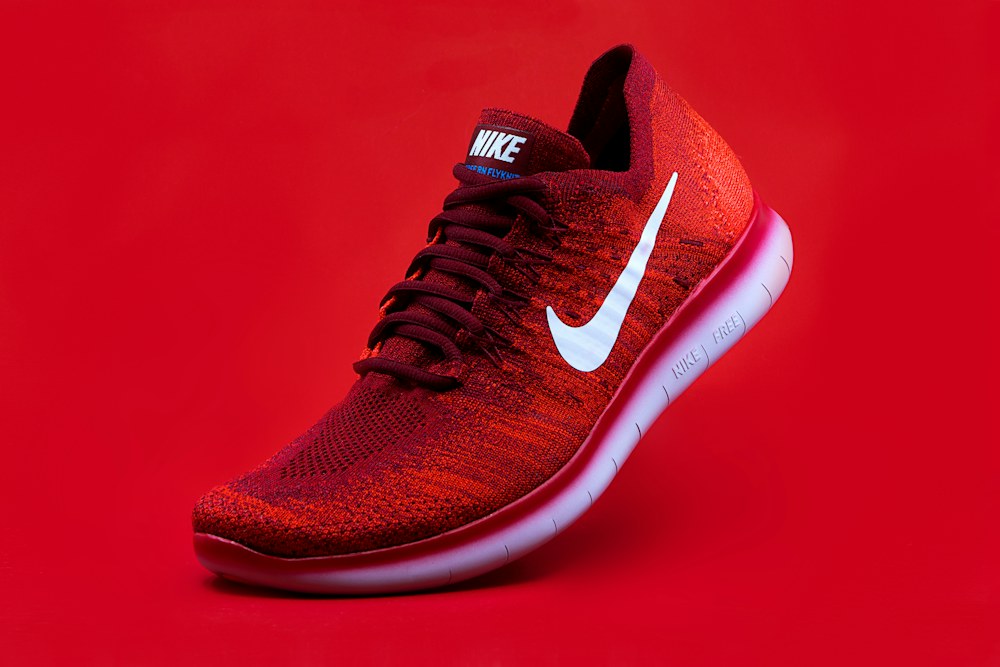
02 · Choose page & layout
Use Fit Image to keep a page close to the source image proportions, or choose A4 or US Letter for a familiar document page. Set portrait or landscape orientation to suit your images, printing needs, or submission requirements.
The page preview is illustrative; the exported PDF uses the page size and orientation selected in the converter.
03 · Set page margins
Choose no, small, or medium margins in PngExport to control the white space around each image. Margins can give scanned paperwork breathing room or help photos sit neatly on a standard page.
 NO MARGIN
MEDIUM MARGIN
Original image
PDF · JPEG / FAST
04 · Enable compression
Turn on compression to encode page images as JPEG and use fast image compression while generating the PDF. It can help make a document easier to email or upload, but may reduce fine image detail compared with an uncompressed export.
This is a feature preview, not a guaranteed file-size estimate. The actual output depends on the number, dimensions, and content of your images.
Made for document creation
PngExport keeps image order, page layout, spacing, and output controls together in one browser-based image-to-PDF workflow.
Turn PNG, JPG, JPEG, WebP, and GIF files into one organized PDF document.
Arrange image cards before export so the PDF follows the exact sequence you need.
Use Fit Image, A4, or US Letter depending on whether the PDF is visual, printable, or document-focused.
Set portrait or landscape orientation and add none, small, or medium margins before creating the PDF.
Reduce output size when the PDF is going to email, a portal, or a shared workspace.
Build the PDF in your browser without installing a separate desktop conversion app.
How it works
PngExport keeps page order and layout choices clear before you export.
Choose multiple images or drag them into the uploader. Each image becomes a PDF page.
Drag cards into order, then choose page size, orientation, margins, and compression.
Generate the PDF and download the finished file with its output size shown.
Built for everyday files
With PngExport, a single PDF is easier to submit, print, review, and share than a loose set of image attachments.
Bundle photographed forms, receipts, certificates, and scanned pages into one document.
Create a PDF photo book, contact sheet, portfolio, or visual handoff from multiple images.
Prepare image-based IDs, supporting documents, and forms for portals that require a PDF upload.
Keep related screenshots together for support tickets, QA notes, reports, or documentation.
PngExport offers Fit Image, A4, and US Letter layouts. Fit Image follows each source image closely; A4 and Letter suit common printing, office, and school workflows.
Keep each page close to the original image proportions. Useful for screenshots, photos, and mixed-size graphics.
Choose a familiar document page for forms, scans, reports, printing, and international workflows.
Use a common office and school page format when the finished PDF will be printed on Letter paper.
PngExport creates the PDF in your browser without an extra converter. Your image order, layout settings, and optional compression stay visible in one focused workspace.
Help center
Answers about using the PngExport image-to-PDF converter to select, order, format, and download image-based PDFs.
On PngExport, convert pages back to images, optimize source files, resize them, or protect the finished document.